
Backups · How to check
How Can I Tell If My Backups Actually Work?
The only real proof is a restore test: bring back real files or a whole system, then confirm they open, work, and are recent. A "backup successful" message only tells you a copy was made. Here's how to test business backups, in plain English.
By SupportMax · Updated October 13, 2026
A quick check you can do today
1
Ask what is backed up, and what isn't
2
Ask when a restore was last tested
3
Restore one real file and open it
SupportMax: 310.331.8119 · Mon–Fri, 9–6 Pacific.
Plain-English guidance
Based in West Los Angeles
Managed backups with restore testing
One accountable team
Warning signs
Signs your backups may not work when you need them
Any one of these is a reason to test, not a reason to panic.
01
No one knows when a restore was last tested
Backups that are never restored are an assumption, not a plan.
02
Backup alerts nobody reads
Failed or partial backups often send warnings that land in an inbox no one checks.
03
Backups on the same network
If backups can be reached from the same network or with the same accounts, ransomware can damage them too.
04
Things were left out
New computers, Microsoft 365 email, or cloud apps were added but never included in the backup.
How to test
Three levels of backup testing
Each level proves more than the one before it. Most businesses need all three, at different intervals.
Call 310.331.8119File restore test
Restore a few real files or folders to a separate location and open them. This proves the data is there and readable.
System restore test
Restore a whole computer or server to separate hardware or a virtual machine and confirm it starts and your software runs.
Recovery drill
Walk through a realistic scenario, such as losing the office server, and measure how long it takes to get the business working again.
What to check
What a good backup test checks
A restore test should answer three questions: is everything included, can it survive an attack, and can you get back to work?

Coverage
What's included
Servers and computers that hold business data
Microsoft 365 email, OneDrive, and SharePoint
Accounting and line-of-business data
Cloud apps the business depends on

Protection
Can it survive an attack?
At least one copy kept offline or separate
Backup accounts protected with multi-factor authentication
Backups encrypted
A copy stored away from the office

Recovery
Can you get back to work?
Restored files open and are complete
Restored systems start and software works
Time to recover is measured and written down
Gaps found are fixed and retested
CISA's #StopRansomware Guide recommends keeping offline, encrypted backups and regularly testing them in a disaster recovery scenario. Ready.gov's continuity planning guide helps you decide which systems to restore first.
How often
How often should you test backups?
There's no single right number. It depends on how much your business changes and how much downtime it can afford. A sensible pattern: confirm every day that backups ran, restore sample files regularly, test full system restores on a set schedule and after big changes such as a new server or software, and run a recovery drill when your setup changes. Write down each test and what you found. If you were hit by ransomware, see what happens after a ransomware attack.
Backup & disaster recovery →How SupportMax helps
How SupportMax helps you trust your backups
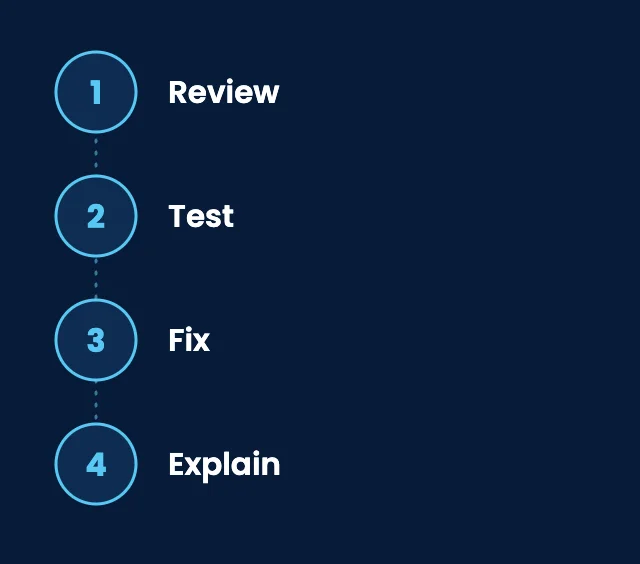
01
Review
We check what is backed up, what isn't, and where the copies are kept.
02
Test
Restore testing is part of our managed backup service.
03
Fix
We close gaps such as missing systems, unprotected backup accounts, or copies on the same network.
04
Explain
We tell you what was tested and what we found, in plain English.

Working with SupportMax
One accountable team, clear next steps
Not sure your backups would work when you need them?
Call during business hours, Monday–Friday, 9:00 a.m.–6:00 p.m. Pacific. We'll talk through what you have today and what to check first. If you'd rather start online, the free IT assessment asks five short questions and recommends next steps.
Questions
How to test business backups: common questions
Have a question that isn't here? Call 310.331.8119 or schedule a free consultation.
Isn't a "backup successful" message enough?
No. It tells you a copy was made. It doesn't tell you whether the copy is complete, readable, or quick enough to restore. Only a restore test shows that.
How often should we test our backups?
Confirm daily that backups ran, restore sample files regularly, and test full system restores on a set schedule and after major changes. The right schedule depends on how much downtime your business can tolerate.
Are Microsoft 365 email and files backed up automatically?
Microsoft 365 has recycle bins and retention settings, but deleted items are only kept for limited periods unless retention is set up for longer. Check whether your backups include email, OneDrive, and SharePoint.
What should a restore test prove?
That the right data came back, that it opens and works, and that it was recent enough. For whole systems, that the computer starts, your software runs, and how long it took.
Can ransomware damage our backups?
Yes, if backups can be reached from the same network or with the same accounts. Keep at least one copy offline or separate, and protect backup accounts with multi-factor authentication.
Does SupportMax test backups?
Yes. Restore testing is part of our managed backup service. If you are not a client yet, call 310.331.8119 during business hours and we will talk through your current setup.
Want to know your backups would work?
Call 310.331.8119, Monday–Friday, 9:00 a.m.–6:00 p.m. Pacific. We'll help you understand what is backed up and how to test it, in plain English. Looking for general IT support in Los Angeles? Start there.
Prefer to call? 310.331.8119 · Mon–Fri, 9–6